
Get the developer newsletter
Product updates, how-tos, community spotlights, and more. Delivered monthly to your inbox.

File extension update
Sep 11, 2025
Claude Desktop Extensions now use the .mcpb (MCP Bundle) file extension instead of .dxt. Existing .dxt extensions will continue to work, but we recommend developers use .mcpb for new extensions going forward. All functionality remains the same - this is purely a naming convention update.
—
When we released the Model Context Protocol (MCP) last year, we saw developers build amazing local servers that gave Claude access to everything from file systems to databases. But we kept hearing the same feedback: installation was too complex. Users needed developer tools, had to manually edit configuration files, and often got stuck on dependency issues.
Today, we're introducing Desktop Extensions—a new packaging format that makes installing MCP servers as simple as clicking a button.
Local MCP servers unlock powerful capabilities for Claude Desktop users. They can interact with local applications, access private data, and integrate with development tools—all while keeping data on the user's machine. However, the current installation process creates significant barriers:
These friction points meant that MCP servers, despite their power, remained largely inaccessible to non-technical users.
Desktop Extensions (.mcpb files) solve these problems by bundling an entire MCP server—including all dependencies—into a single installable package. Here's what changes for users:
Before:
# Install Node.js first
npm install -g @example/mcp-server
# Edit ~/.claude/claude_desktop_config.json manually
# Restart Claude Desktop
# Hope it worksAfter:
.mcpb fileThat's it. No terminal, no configuration files, no dependency conflicts.
A Desktop Extension is a zip archive containing the local MCP server as well as a manifest.json, which describes everything Claude Desktop and other apps supporting desktop extensions need to know.
extension.mcpb (ZIP archive)
├── manifest.json         # Extension metadata and configuration
├── server/               # MCP server implementation
│   └── [server files]
├── dependencies/         # All required packages/libraries
└── icon.png             # Optional: Extension icon

# Example: Node.js Extension
extension.mcpb
├── manifest.json         # Required: Extension metadata and configuration
├── server/               # Server files
│   └── index.js          # Main entry point
├── node_modules/         # Bundled dependencies
├── package.json          # Optional: NPM package definition
└── icon.png              # Optional: Extension icon

# Example: Python Extension
extension.mcpb (ZIP file)
├── manifest.json         # Required: Extension metadata and configuration
├── server/               # Server files
│   ├── main.py           # Main entry point
│   └── utils.py          # Additional modules
├── lib/                  # Bundled Python packages
├── requirements.txt      # Optional: Python dependencies list
└── icon.png # Optional: Extension iconThe only required file in a Desktop Extension is a manifest.json. Claude Desktop handles all the complexity:
The manifest contains human-readable information (like the name, description, or author), a declaration of features (tools, prompts), user configuration, and runtime requirements. Most fields are optional, so the minimal version is quite short, although in practice, we expect all three supported extension types (Node.js, Python, and classic binaries/executables) to include files:
{
  "mcpb_version": "0.1",                    // MCPB spec version this manifest conforms to
  "name": "my-extension",                   // Machine-readable name (used for CLI, APIs)
  "version": "1.0.0",                       // Semantic version of your extension
  "description": "A simple MCP extension",  // Brief description of what the extension does
  "author": {                               // Author information (required)
    "name": "Extension Author"              // Author's name (required field)
  },
  "server": {                               // Server configuration (required)
    "type": "node",                         // Server type: "node", "python", or "binary"
    "entry_point": "server/index.js",       // Path to the main server file
    "mcp_config": {                         // MCP server configuration
      "command": "node",                    // Command to run the server
      "args": [                             // Arguments passed to the command
        "${__dirname}/server/index.js"      // ${__dirname} is replaced with the extension's directory
      ]
    }
  }
}
There are a number of convenience options available in the manifest spec that aim to make the installation and configuration of local MCP servers easier. The server configuration object can be defined in a way that makes room both for user-defined configuration in the form of template literals as well as platform-specific overrides. Extension developers can define, in detail, what kind of configuration they want to collect from users.
Let’s take a look at a concrete example of how the manifest aids with configuration. In the manifest below, the developer declares that the user needs to supply an api_key. Claude will not enable the extension until the user has supplied that value, keep it automatically in the operating system’s secret vault, and transparently replace the ${user_config.api_key} with the user-supplied value when launching the server. Similarly, ${__dirname} will be replaced with the full path to the extension’s unpacked directory.
{
  "mcpb_version": "0.1",
  "name": "my-extension",
  "version": "1.0.0",
  "description": "A simple MCP extension",
  "author": {
    "name": "Extension Author"
  },
  "server": {
    "type": "node",
    "entry_point": "server/index.js",
    "mcp_config": {
      "command": "node",
      "args": ["${__dirname}/server/index.js"],
      "env": {
        "API_KEY": "${user_config.api_key}"
      }
    }
  },
  "user_config": {
    "api_key": {
      "type": "string",
      "title": "API Key",
      "description": "Your API key for authentication",
      "sensitive": true,
      "required": true
    }
  }
}A full manifest.json with most of the optional fields might look like this:
{
  "mcpb_version": "0.1",
  "name": "My MCP Extension",
  "display_name": "My Awesome MCP Extension",
  "version": "1.0.0",
  "description": "A brief description of what this extension does",
  "long_description": "A detailed description that can include multiple paragraphs explaining the extension's functionality, use cases, and features. It supports basic markdown.",
  "author": {
    "name": "Your Name",
    "email": "yourname@example.com",
    "url": "https://your-website.com"
  },
  "repository": {
    "type": "git",
    "url": "https://github.com/your-username/my-mcp-extension"
  },
  "homepage": "https://example.com/my-extension",
  "documentation": "https://docs.example.com/my-extension",
  "support": "https://github.com/your-username/my-extension/issues",
  "icon": "icon.png",
  "screenshots": [
    "assets/screenshots/screenshot1.png",
    "assets/screenshots/screenshot2.png"
  ],
  "server": {
    "type": "node",
    "entry_point": "server/index.js",
    "mcp_config": {
      "command": "node",
      "args": ["${__dirname}/server/index.js"],
      "env": {
        "ALLOWED_DIRECTORIES": "${user_config.allowed_directories}"
      }
    }
  },
  "tools": [
    {
      "name": "search_files",
      "description": "Search for files in a directory"
    }
  ],
  "prompts": [
    {
      "name": "poetry",
      "description": "Have the LLM write poetry",
      "arguments": ["topic"],
      "text": "Write a creative poem about the following topic: ${arguments.topic}"
    }
  ],
  "tools_generated": true,
  "keywords": ["api", "automation", "productivity"],
  "license": "MIT",
  "compatibility": {
    "claude_desktop": ">=1.0.0",
    "platforms": ["darwin", "win32", "linux"],
    "runtimes": {
      "node": ">=16.0.0"
    }
  },
  "user_config": {
    "allowed_directories": {
      "type": "directory",
      "title": "Allowed Directories",
      "description": "Directories the server can access",
      "multiple": true,
      "required": true,
      "default": ["${HOME}/Desktop"]
    },
    "api_key": {
      "type": "string",
      "title": "API Key",
      "description": "Your API key for authentication",
      "sensitive": true,
      "required": false
    },
    "max_file_size": {
      "type": "number",
      "title": "Maximum File Size (MB)",
      "description": "Maximum file size to process",
      "default": 10,
      "min": 1,
      "max": 100
    }
  }
}To see an extension and manifest, please refer to the examples in the MCPB repository.
The full specification for all required and optional fields in the manifest.json can be found as part of our open-source toolchain.
Let's walk through packaging an existing MCP server as a Desktop Extension. We'll use a simple file system server as an example.
First, initialize a manifest for your server:
npx @anthropic-ai/mcpb initThis interactive tool asks about your server and generates a complete manifest.json. If you want to speed-run your way to the most basic manifest.json, you can run the command with a --yes parameter.
If your server needs user input (like API keys or allowed directories), declare it in the manifest:
"user_config": {
  "allowed_directories": {
    "type": "directory",
    "title": "Allowed Directories",
    "description": "Directories the server can access",
    "multiple": true,
    "required": true,
    "default": ["${HOME}/Documents"]
  }
}Claude Desktop will:
In the example below, we’re passing the user configuration as an environment variable, but it could also be an argument.
"server": {
   "type": "node",
   "entry_point": "server/index.js",
   "mcp_config": {
   "command": "node",
   "args": ["${__dirname}/server/index.js"],
   "env": {
      "ALLOWED_DIRECTORIES": "${user_config.allowed_directories}"
   }
   }
}Bundle everything into a .mcpb file:
npx @anthropic-ai/mcpb packThis command:
.mcpb archiveDrag your .mcpb file into Claude Desktop's Settings window. You'll see:
Extensions can adapt to different operating systems:
"server": {
  "type": "node",
  "entry_point": "server/index.js",
  "mcp_config": {
    "command": "node",
    "args": ["${__dirname}/server/index.js"],
    "platforms": {
      "win32": {
        "command": "node.exe",
        "env": {
          "TEMP_DIR": "${TEMP}"
        }
      },
      "darwin": {
        "env": {
          "TEMP_DIR": "${TMPDIR}"
        }
      }
    }
  }
}Use template literals for runtime values:
${__dirname}: Extension's installation directory${user_config.key}: User-provided configuration${HOME}, ${TEMP}: System environment variablesHelp users understand capabilities upfront:
"tools": [
  {
    "name": "read_file",
    "description": "Read contents of a file"
  }
],
"prompts": [
  {
    "name": "code_review",
    "description": "Review code for best practices",
    "arguments": ["file_path"]
  }
]We're launching with a curated directory of extensions built into Claude Desktop. Users can browse, search, and install with one click—no searching GitHub or vetting code.
While we expect both the Desktop Extension specification and the implementation in Claude for macOS and Windows to evolve over time, we look forward to seeing the many ways in which extensions can be used to expand the capabilities of Claude in creative ways.
To submit your extension:
We are committed to the open ecosystem around MCP servers and believe that its ability to be universally adopted by multiple applications and services has benefitted the community. In line with this commitment, we’re open-sourcing the Desktop Extension specification, toolchain, and the schemas and key functions used by Claude for macOS and Windows to implement its own support of Desktop Extensions. It is our hope that the MCPB format doesn’t just make local MCP servers more portable for Claude, but other AI desktop applications, too.
We're open-sourcing:
This means:
The specification and toolchain is on purpose versioned as 0.1, as we are looking forward to working with the greater community on evolving and changing the format. We look forward to hearing from you.
We understand that extensions introduce new security considerations, particularly for enterprises. We've built in several safeguards with the preview release of Desktop Extensions:
For more information about how to manage extensions within your organization, see our documentation.
Ready to build your own extension? Here's how to start:
For MCP server developers: Review our developer documentation – or dive right in by running the following commands in your local MCP servers’ directory:
npm install -g @anthropic-ai/mcpb
mcpb init
mcpb packFor Claude Desktop users: Update to the latest version and look for the Extensions section in Settings
For enterprises: Review our enterprise documentation for deployment options
Internally at Anthropic, we have found that Claude is great at building extensions with minimal intervention. If you too want to use Claude Code, we recommend that you briefly explain what you want your extension to do and then add the following context to the prompt:
I want to build this as a Desktop Extension, abbreviated as "MCPB". Please follow these steps:

1. **Read the specifications thoroughly:**
   - https://github.com/anthropics/mcpb/blob/main/README.md - MCPB architecture overview, capabilities, and integration patterns
   - https://github.com/anthropics/mcpb/blob/main/MANIFEST.md - Complete extension manifest structure and field definitions
   - https://github.com/anthropics/mcpb/tree/main/examples - Reference implementations including a "Hello World" example

2. **Create a proper extension structure:**
   - Generate a valid manifest.json following the MANIFEST.md spec
   - Implement an MCP server using @modelcontextprotocol/sdk with proper tool definitions
   - Include proper error handling and timeout management

3. **Follow best development practices:**
   - Implement proper MCP protocol communication via stdio transport
   - Structure tools with clear schemas, validation, and consistent JSON responses
   - Make use of the fact that this extension will be running locally
   - Add appropriate logging and debugging capabilities
   - Include proper documentation and setup instructions

4. **Test considerations:**
   - Validate that all tool calls return properly structured responses
   - Verify manifest loads correctly and host integration works

Generate complete, production-ready code that can be immediately tested. Focus on defensive programming, clear error messages, and following the exact
MCPB specifications to ensure compatibility with the ecosystem.Desktop Extensions represent a fundamental shift in how users interact with local AI tools. By removing installation friction, we're making powerful MCP servers accessible to everyone—not just developers.
Internally, we’re using desktop extensions to share highly experimental MCP servers - some fun, some useful.. One team experimented to see how far our models could make it when directly connected to a GameBoy, similar to our “Claude plays Pokémon” research. We used Desktop Extensions to package a single extension that opens up the popular PyBoy GameBoy emulator and lets Claude take control. We believe that countless opportunities exist to connect the model’s capabilities to the tools, data, and applications users already have on their local machines.
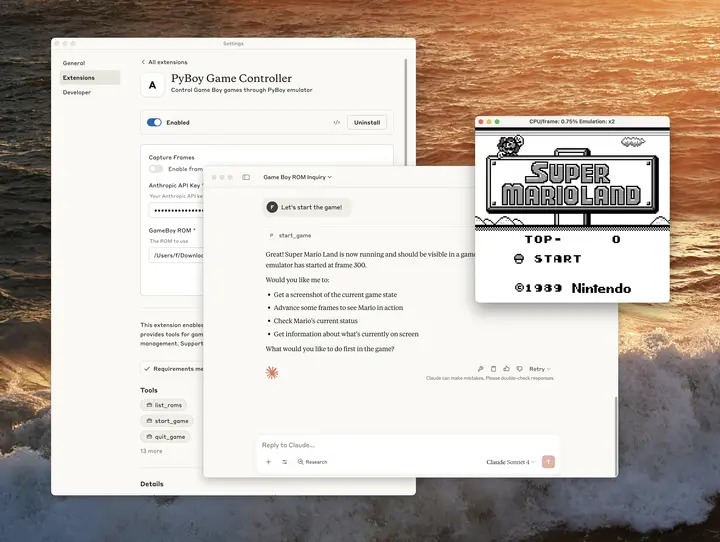
We can't wait to see what you build. The same creativity that brought us thousands of MCP servers can now reach millions of users with just one click. Ready to share your MCP server? Submit your extension for review.
Product updates, how-tos, community spotlights, and more. Delivered monthly to your inbox.